USER MANUAL
HOW IT ALL WORKS
User Manual: Contents
WHO IS YUTILITI
Yutiliti is a Fibre ISP that delivers superfast installation and lightning-fast internet service. It offers a comprehensive digital utility to every household where Lightstruck has rolled out fibre. We swiftly enable you to get connected with fibre and then we deliver world-class superfast internet to your home.
Yutiliti was created to wipe out the typically long and frustrating wait between signing up for a new fibre installation and getting connected. It is simply the quickest way for home users to experience lightning-fast fibre.
In under 10 minutes, your ad min is done. In just 48 hours, the installer will contact you. In a couple of days, you will be live on fibre – blazing along the internet at the speed of light!

CONSTRUCT
Lightstruck installs fibre cable in the neighbourhood
CONNECT
Yutiliti is your ISP and connects you to the internet

ENJOY
Enjoy life in the fast lane with superhero fast internet
ORDERING YOUR FIBRE PRODUCT
Place your order in 3 steps:
STEP 1: To place your order, visit www.yutiliti.co.za to proceed with your application. Please contact us on 021 300 6383 if you have any questions or queries.
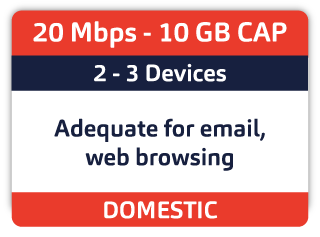
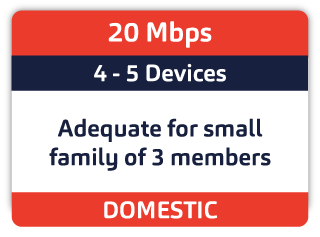
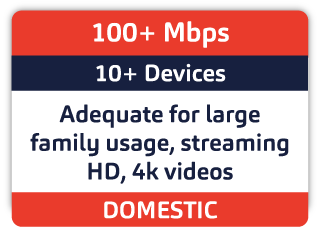
STEP 2: Choose the package that best suits your needs.
FIBRE TO THE HOME (FTTH)
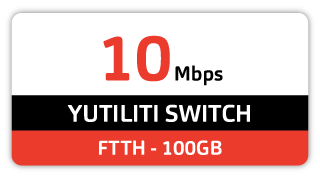

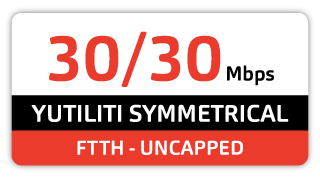
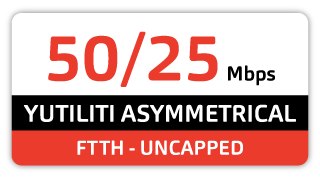
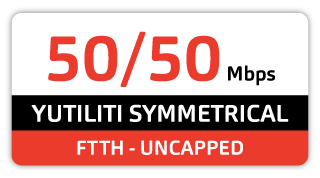

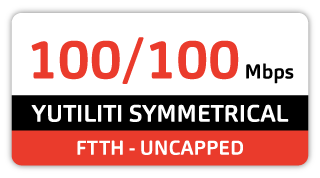

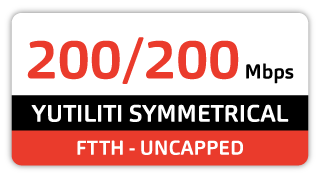


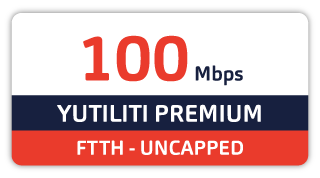
*Check our website for pricing.
STEP 3: Place Your Order.
HELPING YOU CHOOSE THE RIGHT SPEED FOR YOUR NEEDS
AFTER YOUR ORDER IS PLACED
- Once the order has been placed you will receive an email requesting the following:
- Once your order has been successfully processed, you will receive your login details for the online portal.
PREPARING OF THE ROUTER
Yutiliti provides a free to use router with your package.
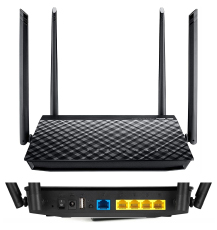
ASUS RT-AC58U:
Stylish dual–band wireless router with a quad-core processor for fast, responsive network performance. This router accommodates unrivalled Wi-Fi speed on multiple concurrent devices with improved range.
*Refer to our website for pricing.
COURIER OF YOUR ROUTER
Your router will be delivered via courier to the address of your choice. The tracking number can be provided on request. Should your router arrive before the installation of the fibre takes place, please keep the router in its packaging until our team has arrived. They will plug it in and set it up after the Fibre has been installed.
FIBRE INSTALLATION
The scheduling team will be in contact with you to book the time and date for your installation to take place. Please be aware that the installation of the fibre from the street to the ONT in your property could take up a couple hours depending on the complexity. The ONT should be installed in a central location in the property, and the client is to inform the installation team of the location. Refer to bottom of page 6 for tips on where to place your Wi-Fi router.
If you have any specific questions with regards to the installation, please speak with the installation team on arrival, or contact support@yutiliti.co.za with any questions you may have. Once the installation team has finished and connected the router to the ONT Box your internet will be live and active.
CONNECTING THE ONT TO THE ROUTER
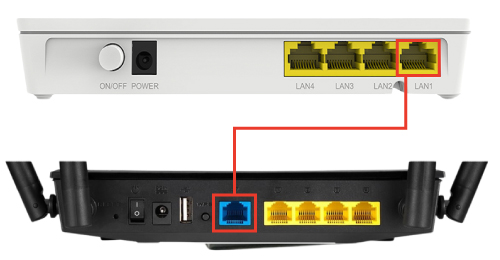
Please make sure the ethernet cable (Blue cable provided with the router) is connected from LAN 1 (or LAN 2 if you have had previously fibre) on the ONT (as shown below) to the BLUE PORT (as shown below)
WIFI DETAILS AND INFORMATION
All routers are defaulted to the below username and passwords:
USERNAME: Mikrotik
PASSWORD: 12345678
These details will only be changed if a username SSID and password are provided by the client on their order forms. If the default username SSID and password do not work, please check your order form for the username SSID and password you have chosen. All our routers are free to use routers and as such access to the backend of the router is prohibited. If you would like to make any configuration changes, please email support@yutiliti.co.za with the changes you would like made. If you would like to use your own router, we can provide the PPPoE details for you to configure your own router. Note, we do not offer remote support on your own routers. Please keep our router in a a safe and secure location, as we will need to connect it for remote troubleshooting purposes.
FOUR TIPS FOR GETTING THE MOST OUT OF YOUR WI-Fl

KNOW WHERE TO PLACE YOUR WIFI ROUTER
Position the WiFi router near the area that will be used the most in the home or business. The router needs to breathe. Avoid placing the router on the floor, cupboard or near items which give off high heat. The higher up the router is placed, the better. Cordless phones, baby monitors and microwaves could affect the WiFi signal, as such make sure the router is not close to these devices.



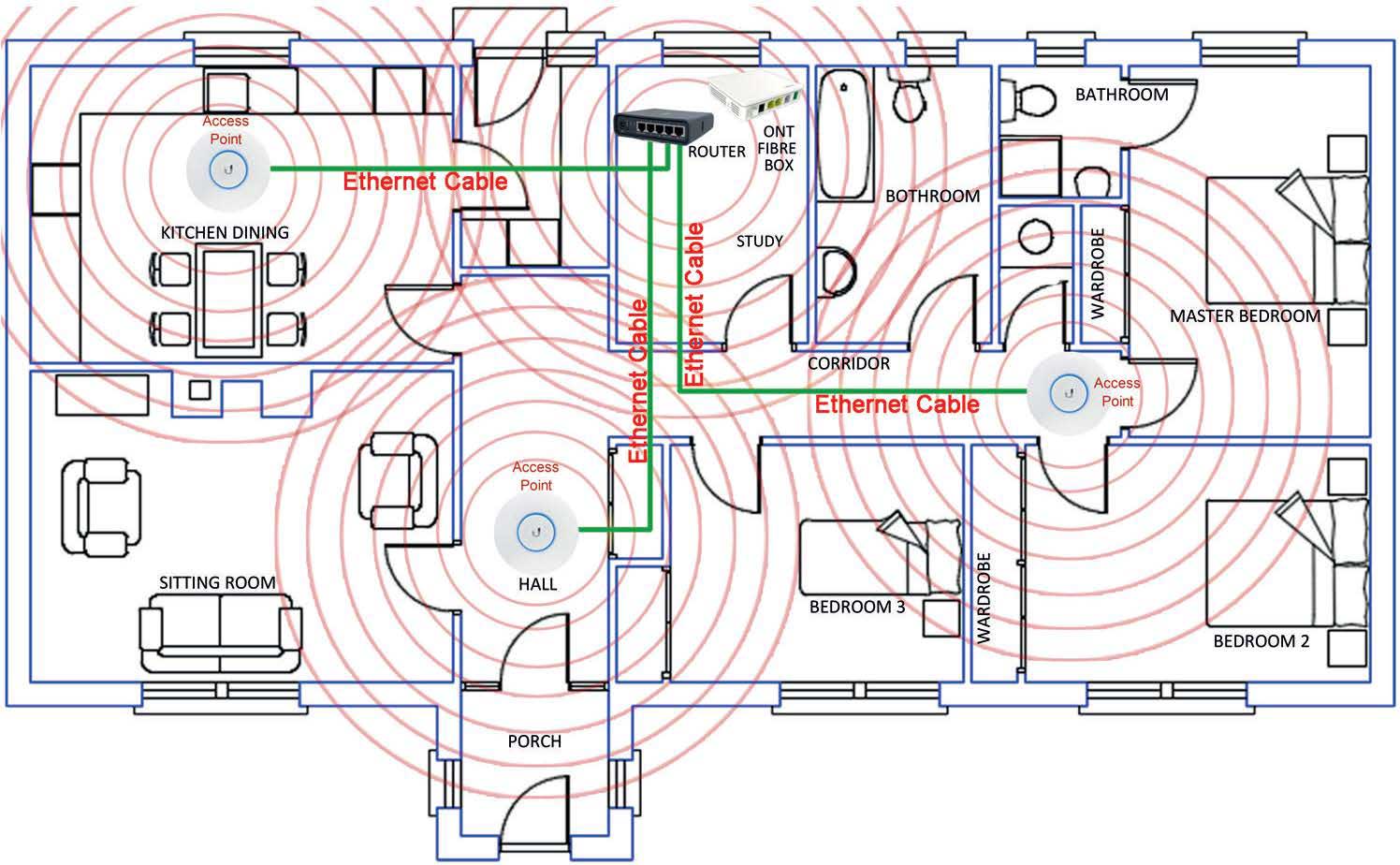
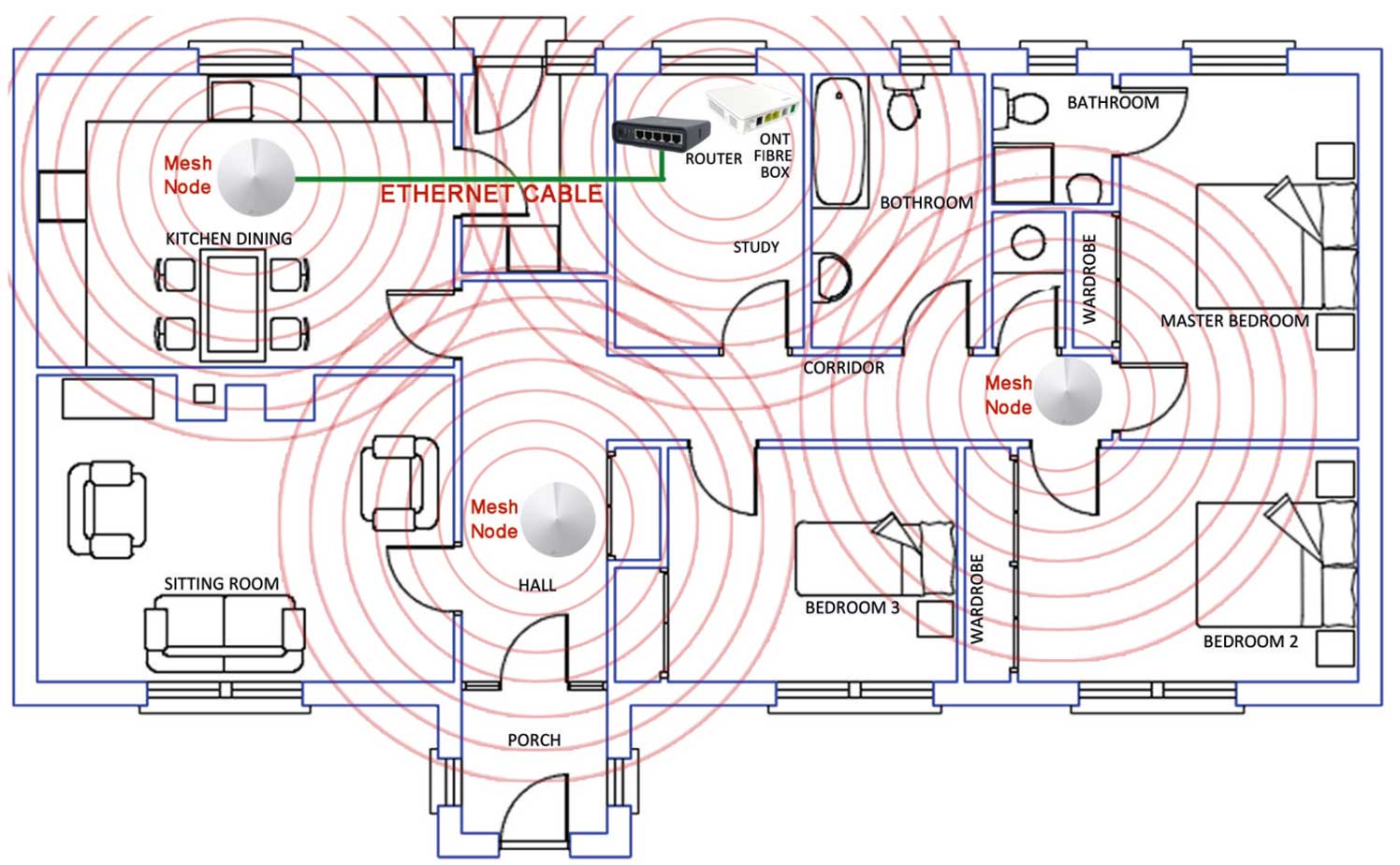
Please note WIFI is not guaranteed- if it doesn’t cover your entire property, please see below options to extend the WIFI range. This will be quoted and installed at the clients cost and completed by a third party installer. We can recommend one of our trusted partners.
ACCESS POINT HOME WIFI NETWORK
MESH DEVICE HOME WIFI NETWORK
BASIC TROUBLESHOOTING GUIDE
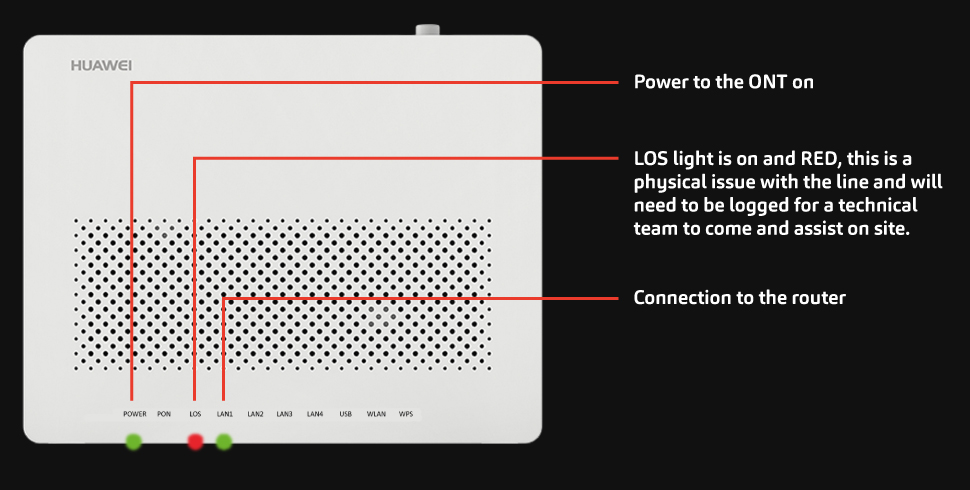
1) Physical line damage.
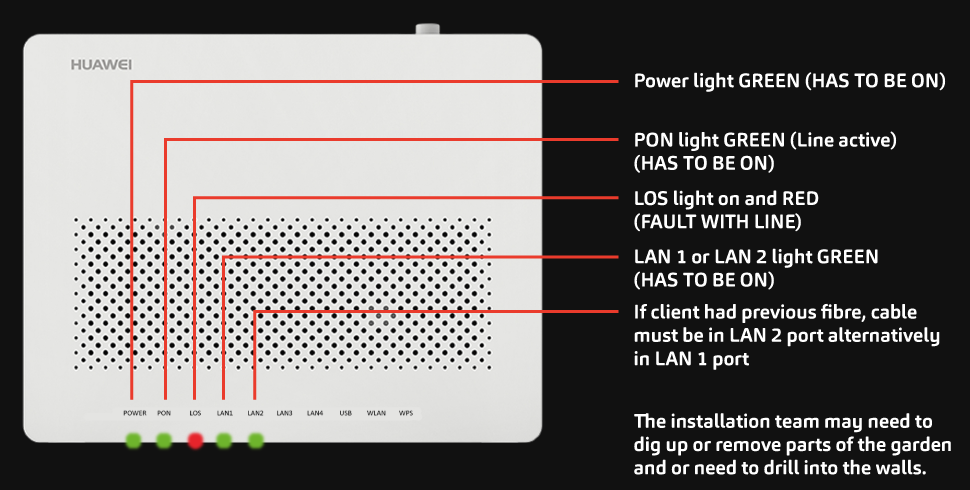
If your LOS light is on and RED there is physical damage to your fibre line. Please contact support@yutilit.co.za and we will escalated it to Lightstruck. An onsite technician will be arranged to fix the line, depending on where the fault is.
2) For Loss of connectivity, or no internet access, Please follow the below steps:
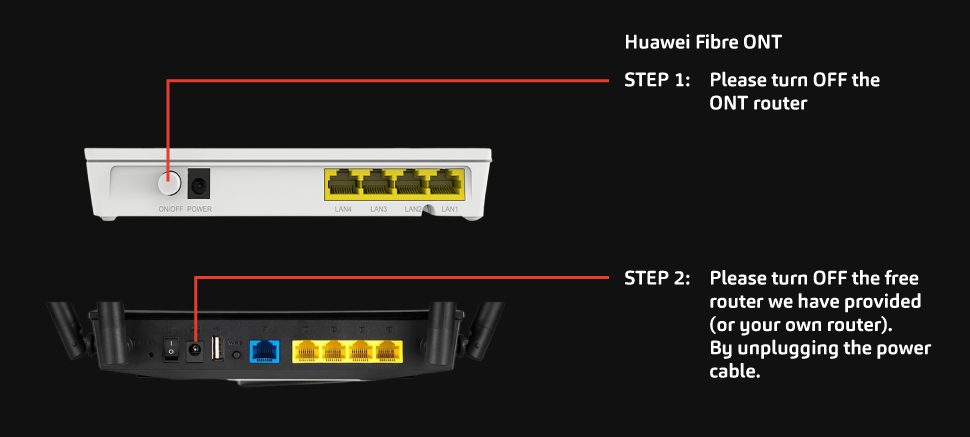
STEP 3 – Please leave both the ONT and router off for a minimum of 4 minutes.
STEP 4 – Turn the ONT on first. Wait for the Power Light and the PON light to go green and remain steady.
STEP 5 – Turn on the Router. Wait for the router to boot up properly before attempting to connect to the network again.
STEP 6 – If the issue persists, please mail Yutiliti on support@yutiliti.co.za for one of our support staff to contact you for more advanced troubleshooting.
* Warning, do not reset your router. This will remove all the pre-configured settings causing a loss of internet connection. Your account will be charged a fee of R805 incl VAT to reconfigure your router and get you back online.